Prerequisites
Before batch processing Global Checkout shipments in WorldShip, ensure you have:
- The latest version of WorldShip installed
- A Shipment XML file containing your shipment data
Create an import map
Before batch processing shipments, you must create an import map in WorldShip.
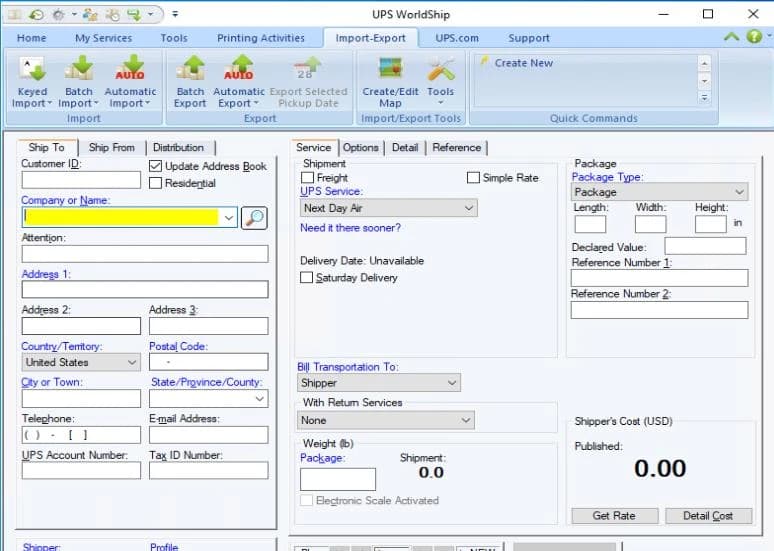
- Click Create/Edit Map on the Import-Export ribbon
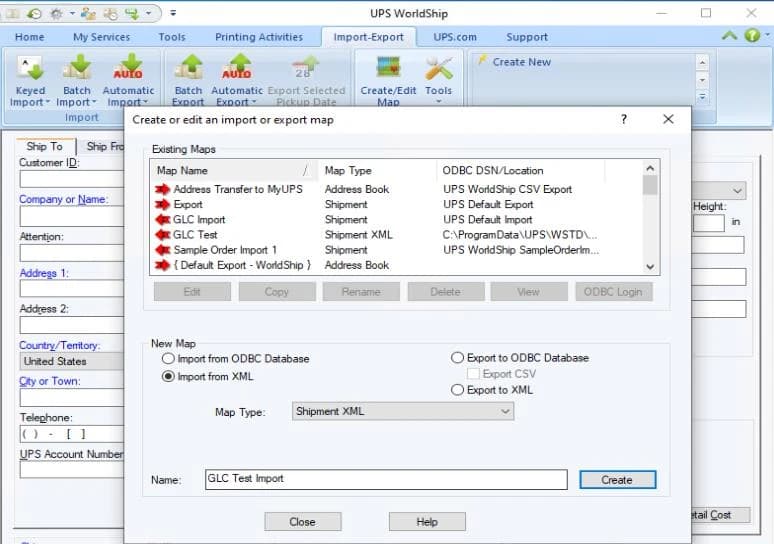
A new Create or edit an import or export map window will open. Select Import from XML, choose Shipment XML as the Map Type, and give the map a name. Click Create.
A Select an XML File Folder window will open. Click Browse and choose the folder where your XML file is stored.
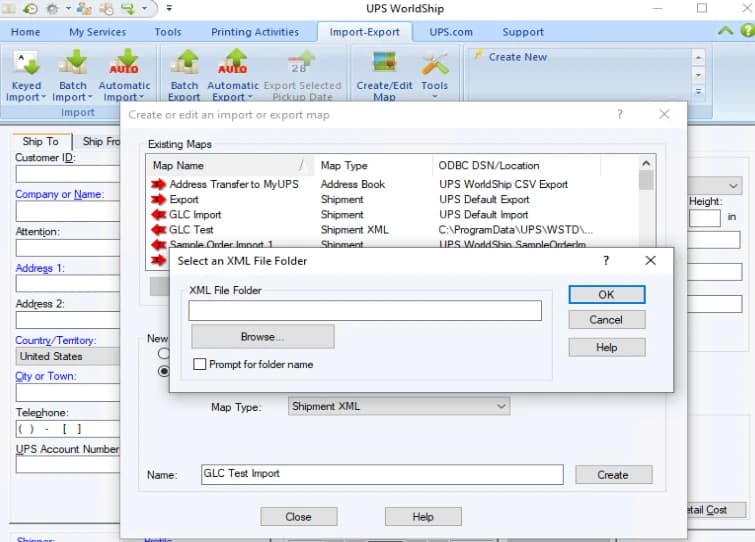
Preferred XML file location: C:\ProgramData\UPS\WSTD\ImpExp
XML file requirements
Your Shipment XML file must include the Global Checkout fields under ShipmentOptions:
GlobalCheckoutQuoteIDandGlobalCheckoutfall underShipmentOptionsGlobalCheckoutQuoteIDsupports a string of up to 35 charactersOptionmust be added with a value of eitherYorNto indicate if the shipment should be processed as Global Checkout
Shipment XML example
<ShipmentOptions><GlobalCheckout><GlobalCheckoutQuoteID>YOUR_QUOTE_ID</GlobalCheckoutQuoteID><Option>Y</Option></GlobalCheckout></ShipmentOptions>
Batch process shipments
Once the map is created, process your shipments using Batch Import.
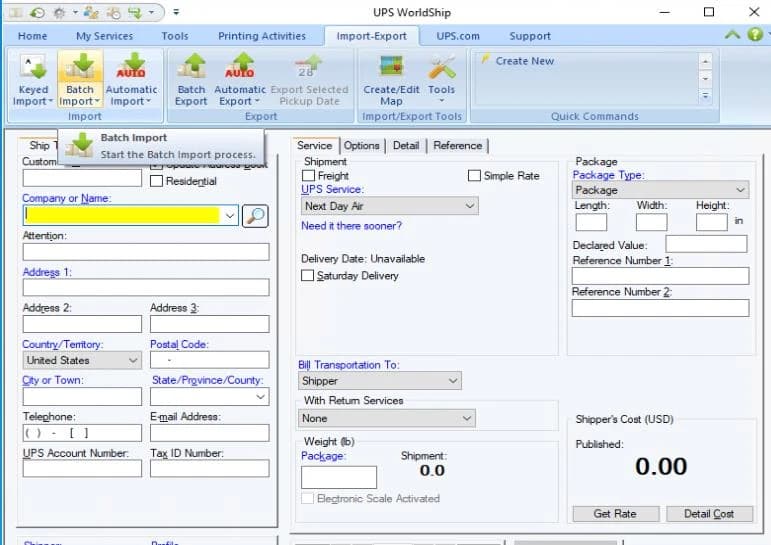
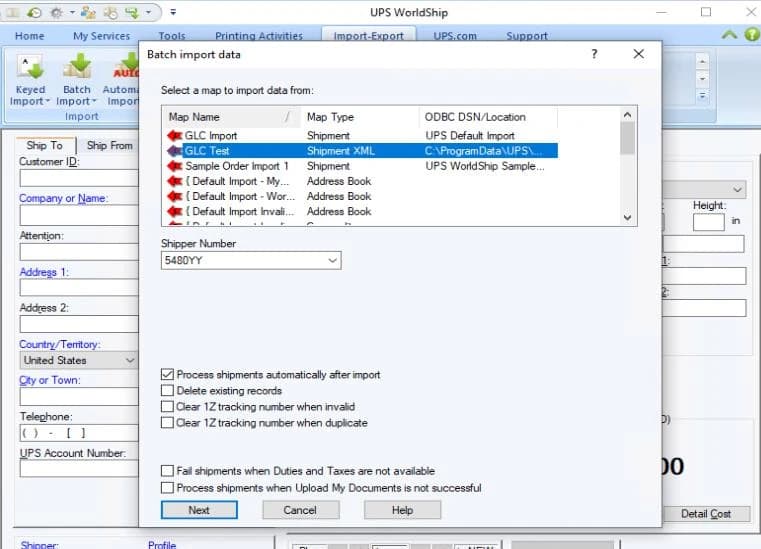
- Click Batch Import on the Import-Export ribbon
The Batch import data window will open. Select your Map Name and check the Process shipments automatically after import checkbox. Click Next.
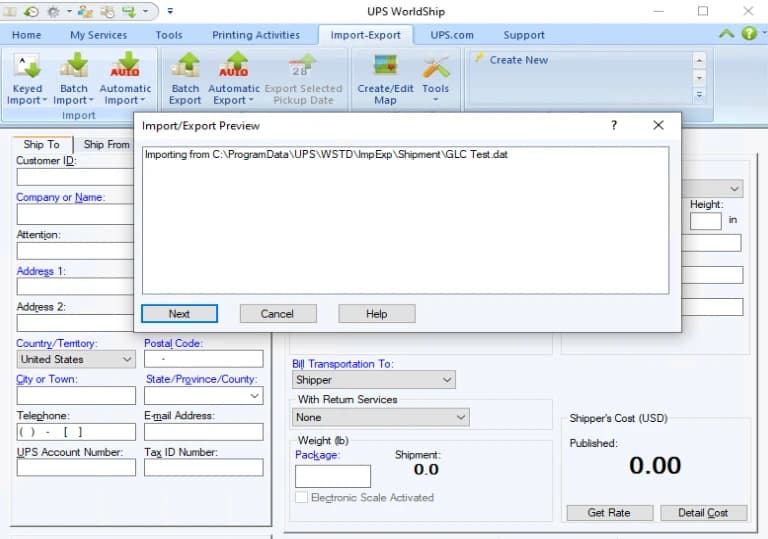
The Import/Export Preview window will open. Verify the import path is correct, then click Next.
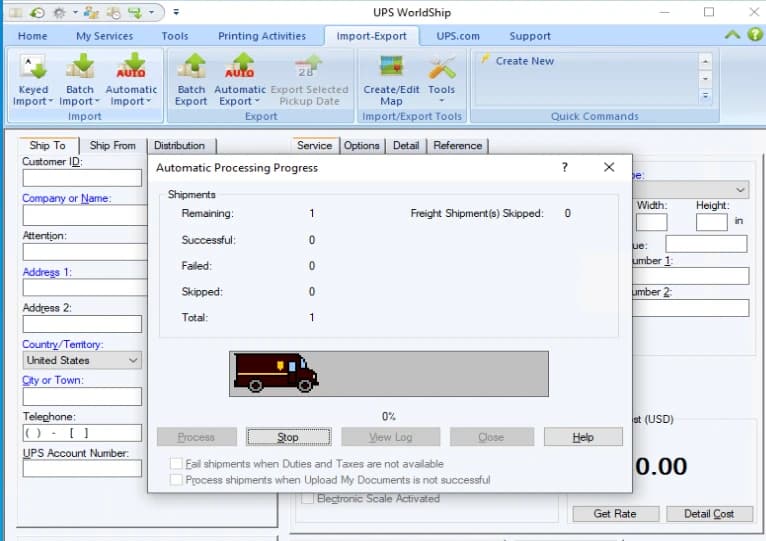
- The Automatic Processing Progress window will be displayed
Once processing completes, the number of shipments processed successfully will be displayed
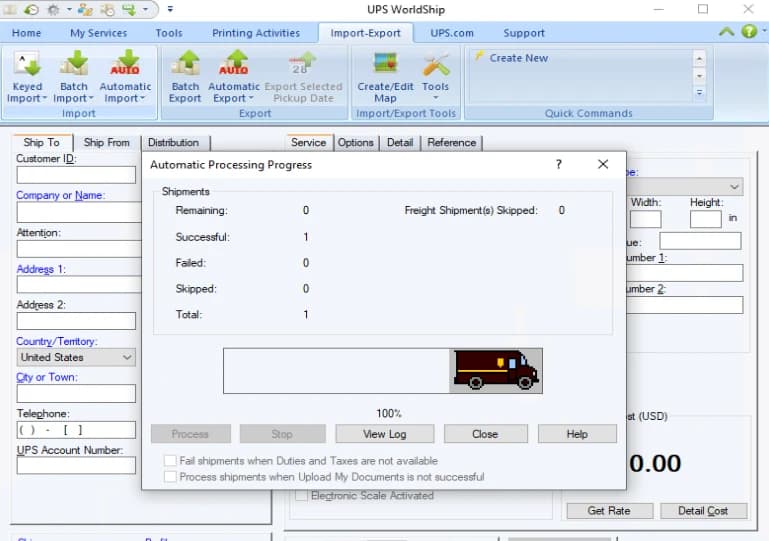
If any shipment encounters an error, click View Log. All errors are logged in the log file.
Verify shipments and End of Day
After batch processing completes, each shipment can be verified in shipment history, where the Guaranteed Landing Cost is displayed in the Misc. tab. Once all information is verified, run End of Day to generate the PLD (Package Level Detail) file.
See UPS WorldShip for detailed steps on viewing shipment history, verifying Guaranteed Landing Cost details, and processing End of Day.
UPS WorldShip batch processing
Learn how to process UPS Global Checkout™ shipments in bulk using Batch Import in WorldShip.